Technical Guidelines
Technical Guideline Description

The Enclosure service which allows you to add a Customised or Standard enclosure to your order in which your PCB(s) will be mounted.
A Standard enclosure is simply as we receive it from the manufacturer and a Customised enclosure is a standard enclosure modified to your specifications inhouse by Eurocircuits.
The type of modifications available are:
Machining (holes, slots, cut-outs etc.)
If you require a standard enclosure, then no additional information is required.
If you require a customised enclosure, then please supply the following information with your order:
A graphical representation of the customised enclosure will be available in the 3D Viewer available via the Enclosure Visualizer tab (see below for more details).
First Sign In to your Eurocircuits Customer Account.
From the left-hand menu click on ENCLOSURES, this will expand the menu to show the available options under this menu item.
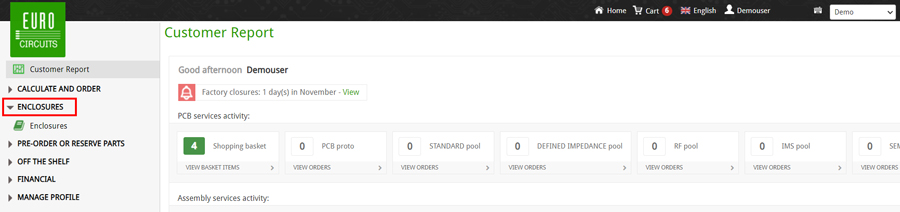
Next select Enclosures from the expanded menu. this will open the enclosures window.
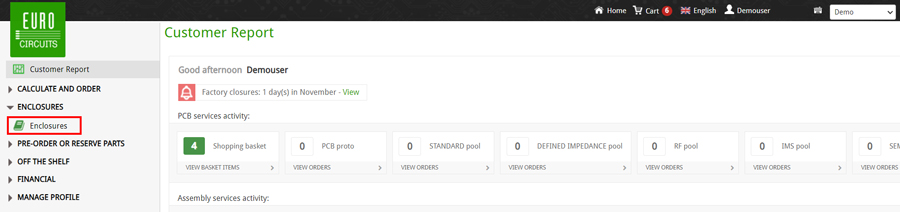
This will open the enclosures explorer window.
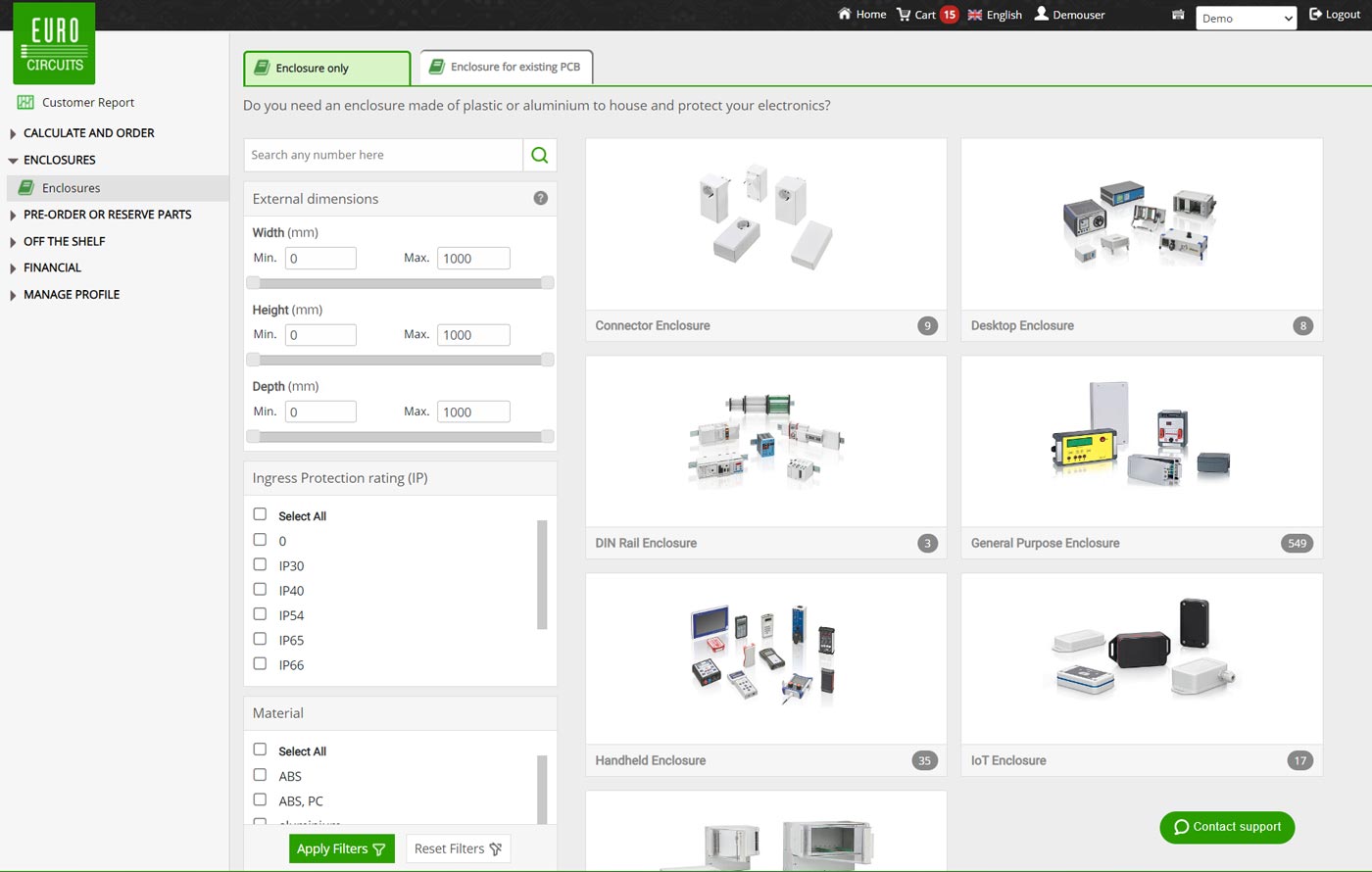
The 2 tabs at the top allow you to select a standalone enclosure or one linked to a PCB.
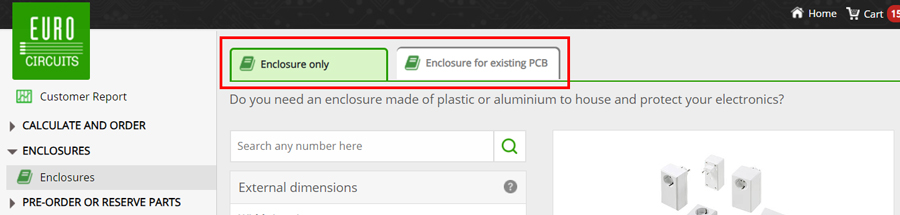
If you wish to order an enclosure only, click on the Enclosure only tab and follow the instructions below in the Finding the Right Enclosure section.
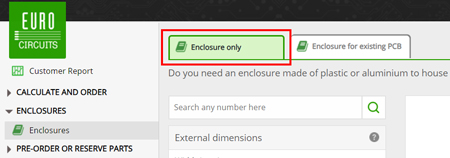
You can link a PCB in your Shopping basket or View running order or Order repeats/View history at a later stage using the 3D Enclosure Viewer, see below for more details.
Select this tab if you wish to link an Enclosure order to an existing in your Shopping basket or View running order or Order repeats/View history.
Click on the Enclosure for existing PCB tab.
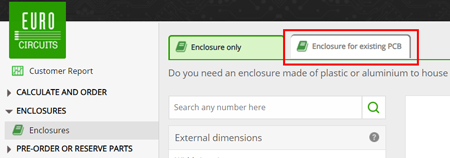
This will open the Select an existing PCB order to continue window where you can select the appropriate PCB, these can be from your Shopping basket, View running orders or Order repeats/View history.
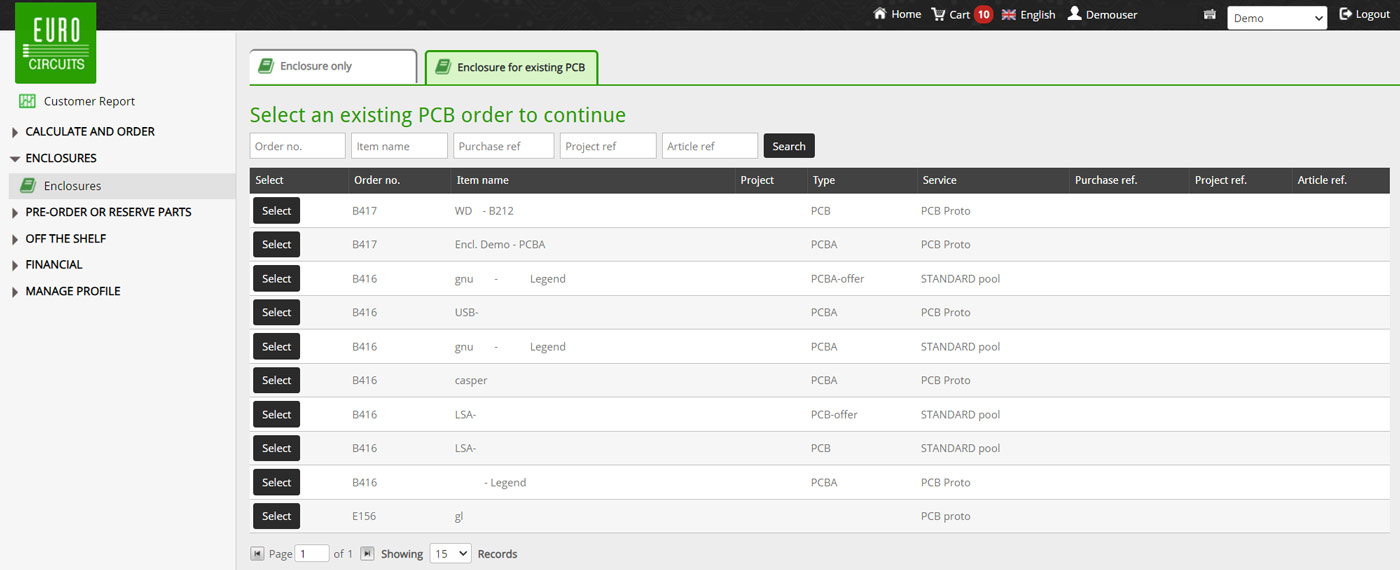
To select the appropriate PCB, click on the appropriate Select button in the same row as the appropriate order number.
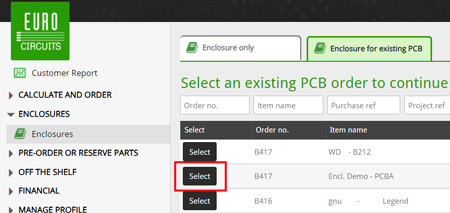
Once selected you will be returned to the enclosure explorer window where you can search or select the appropriate enclosure using the 3D Enclosure Viewer.
Please follow the instructions below in the Finding the Right Enclosure (link) section.
If you know the reference number of the enclosure you want to add, simply type or paste it in the search box in the top left of the Enclosure window.
Then click on the magnifying glass symbol in the right-hide side of the search field.
The enclosure will then be displayed in the panel to the right.
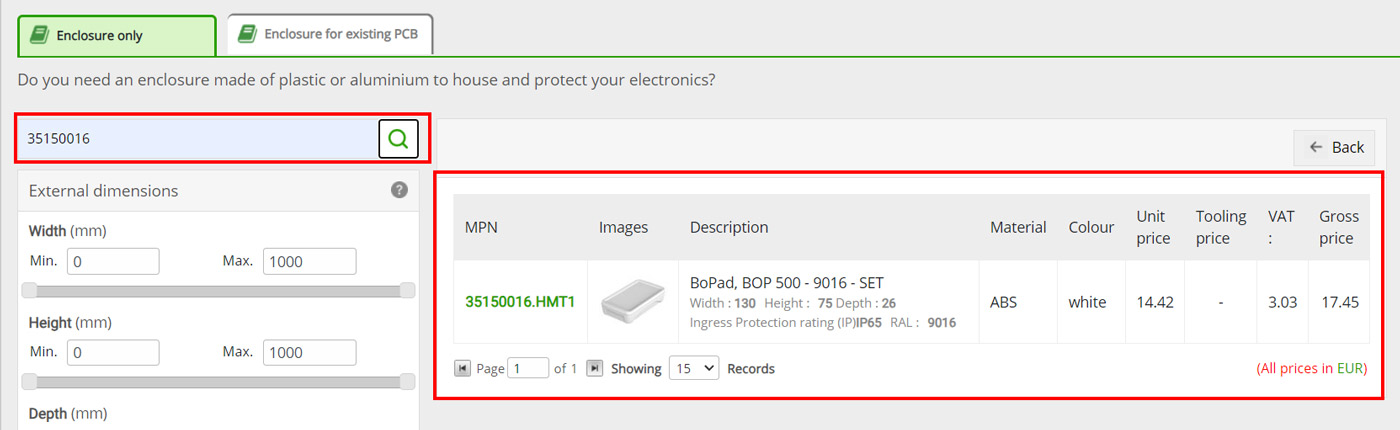
To view the details of the enclosure, follow the instructions in the View an Enclosure below.
This will open the Enclosure window where you can search for a suitable enclosure by either the enclosure number or using the available filters:
After adjusting the appropriate filters click on the Apply Filters button in the bottom left to apply them.
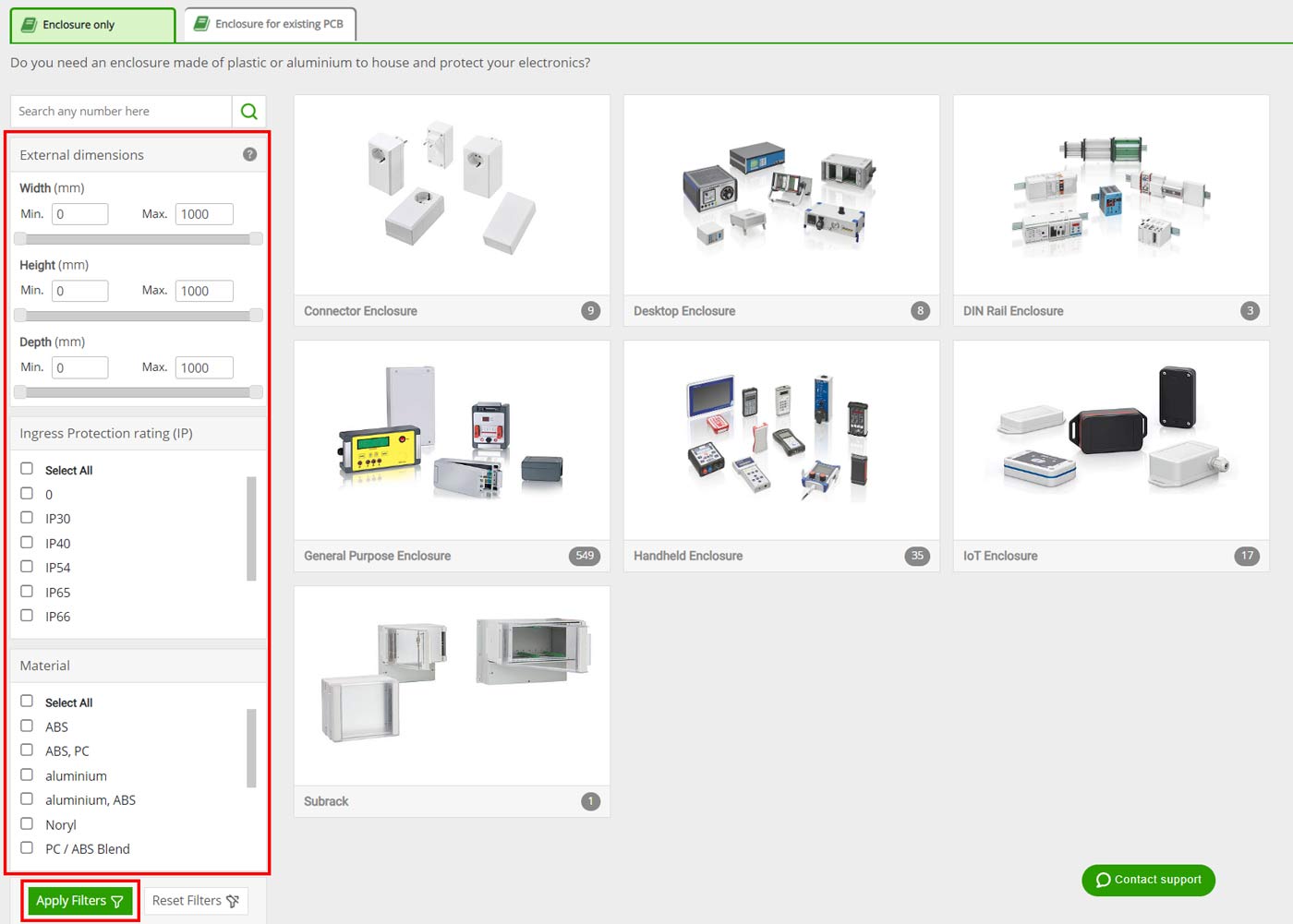
You then view the available enclosures based the filters applied on the type:
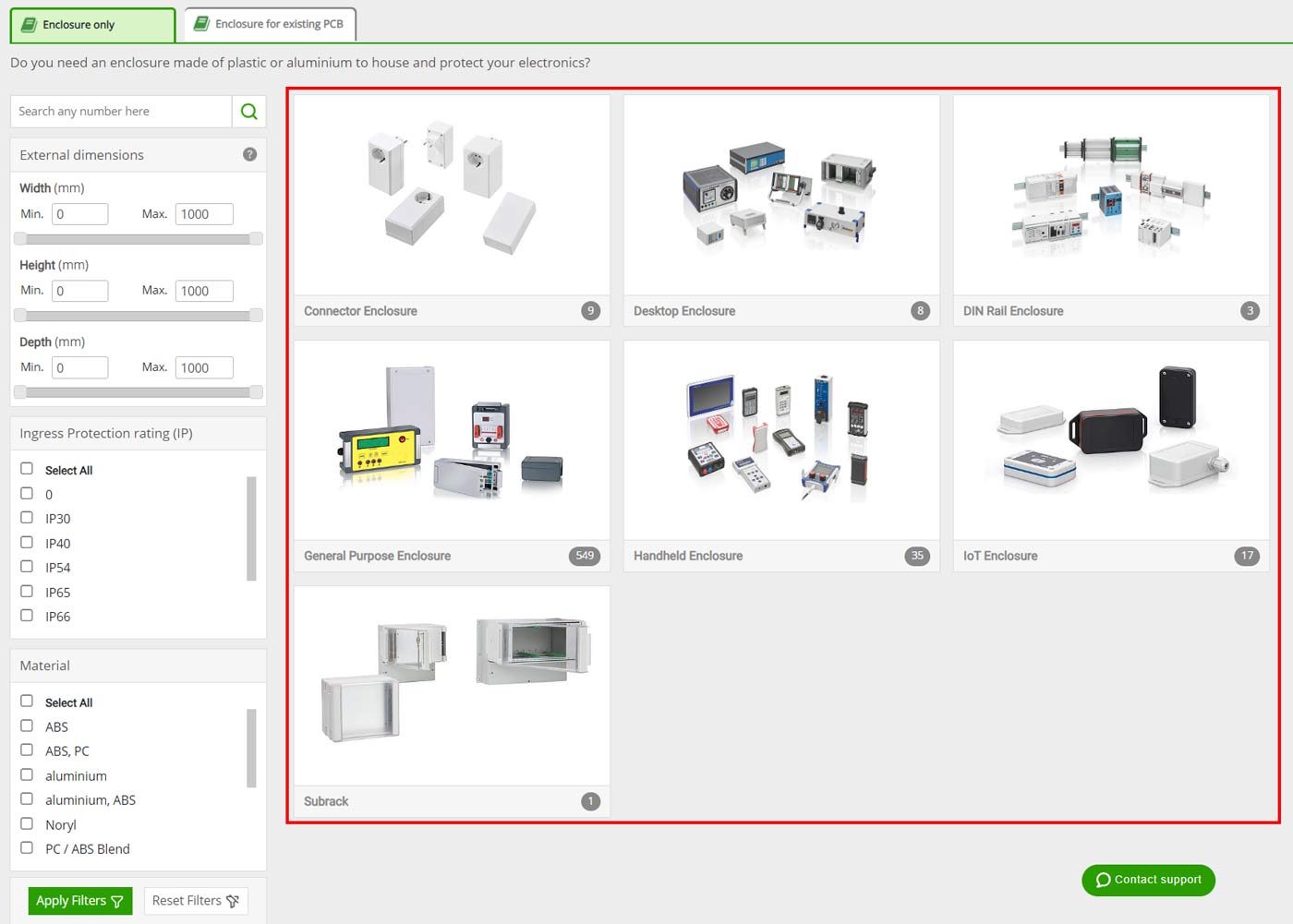
The number of available enclosures of each type will be displayed in the bottom right corner.

To view any of the enclosures simply click on the type.
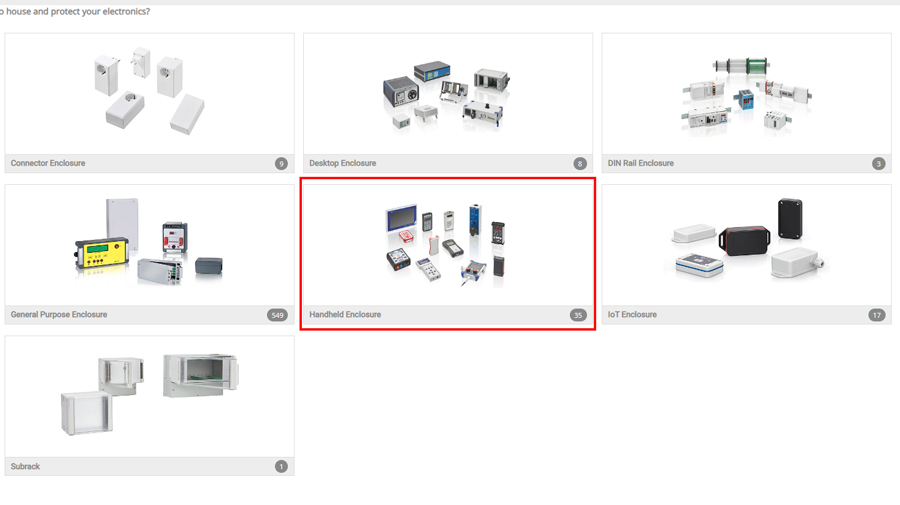
This will open a new with a list of all the enclosures of that type that match the filter settings.
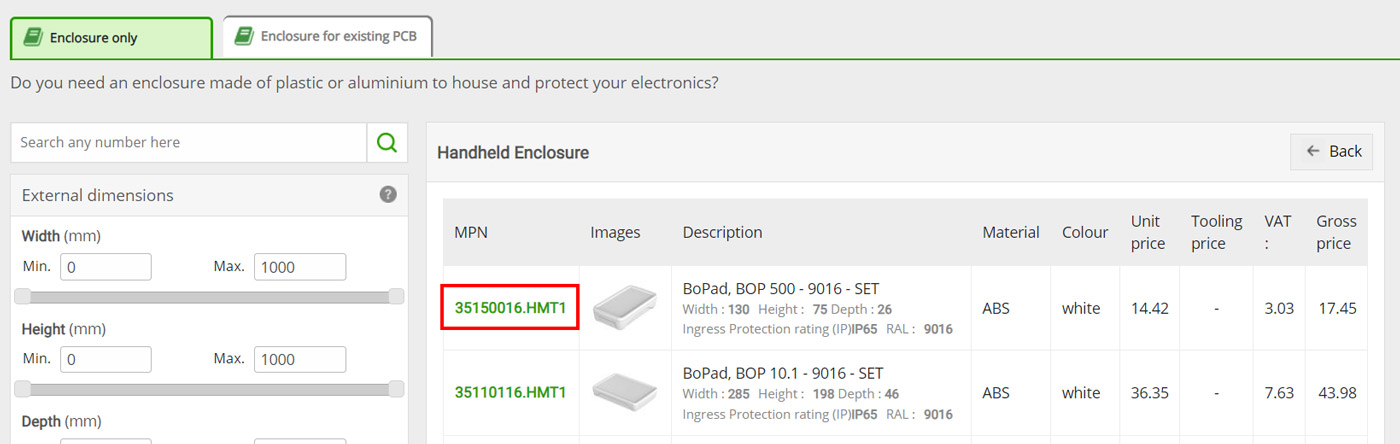
You also adjust the filter settings in this screen on the left and navigate back to the previous screen by clicking on the back button in the top right-hand corner.
To view one of the enclosures, click on the Green MPN number in the left column.
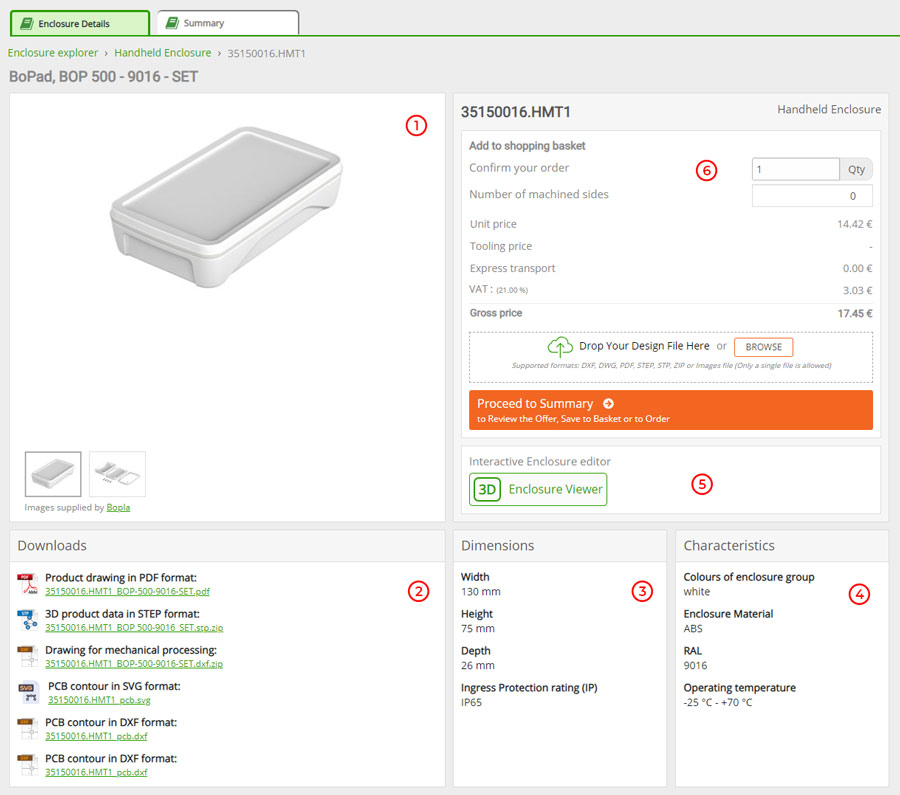
This will open a window with detailed information about the enclosure with images.
There are 6 sections in the detailed information window:
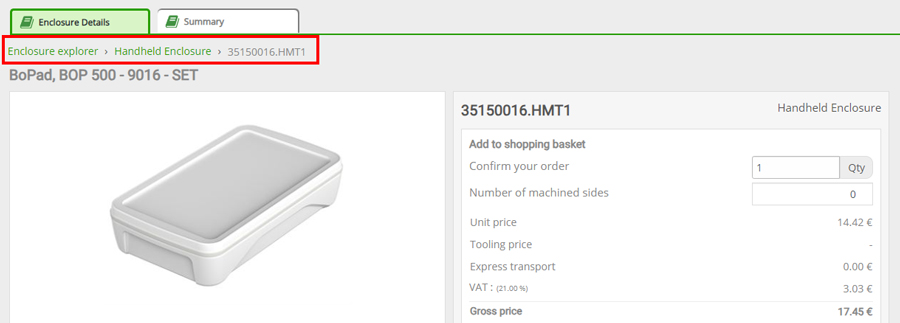
There is also a breadcrumb navigation at the top left to allow you to easily see which enclosure section you are in (type) and allows quick navigation.
To view different perspectives of the image, click on the thumbnail images below the main image.
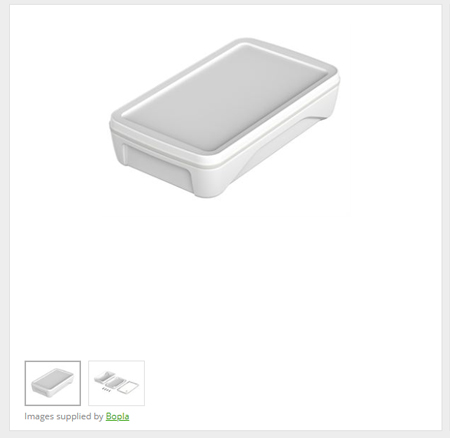
Click on the main image selected to have a larger view of the image in a popup window.
Various file types may be available for download to help define the shape and size of the PCB and cut-outs that may be required.
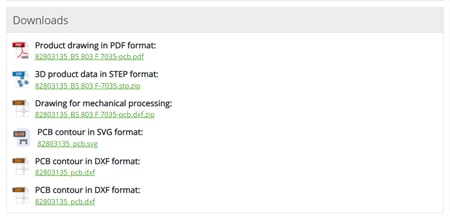
To download related data including drawings and DXF files for the enclosure click on the required file in the Downloads section.
This will download the file to your computer in your default download’s location. Alternatively, right click on the file you want to download and select Save as… from the menu and navigate to your preferred location to save the file.
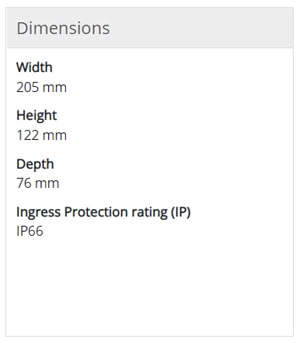
This section provides the external dimensions of the enclosure (W x H X D) and the IP rating.
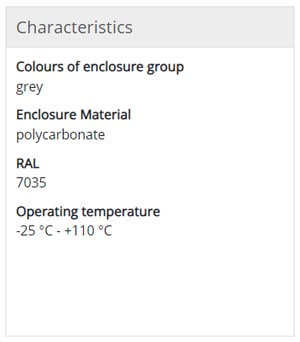
This section provides the colours, material, RAL and operating temperature of the enclosure.
To view the Enclosure in 3D, click on the 3D View in Enclosure editor button in the Interactive Enclosure editor section.

This opens the 3D viewer where you can:
This section allows you to select the quantity of enclosures you require and the number of sides that need to be machined per enclosure.
It automatically provides a price based on these 2 parameters.
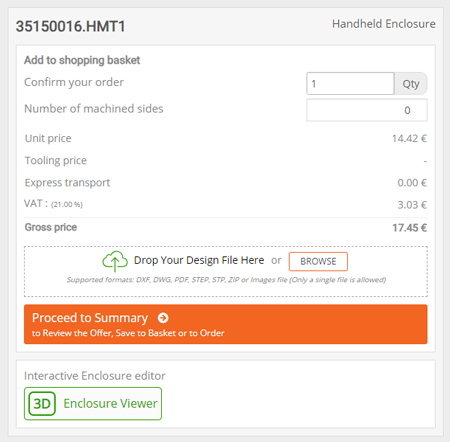
If you have a Design file or Detailed Drawing file for the machining of the enclosure you can upload in this section either by Drag & Drop or Browse and select the file.
To save the selected enclosure to your Shopping basket follow the steps below.
Click on Proceed to Summary button in the detailed view of the selected enclosure.
You will be asked for Confirmation, click Yes to confirm (No will take you back to the Detailed View).
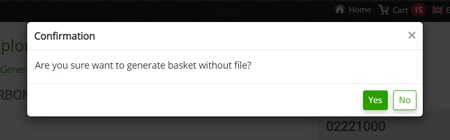
If you click Yes, a new Shopping basket item will be created.
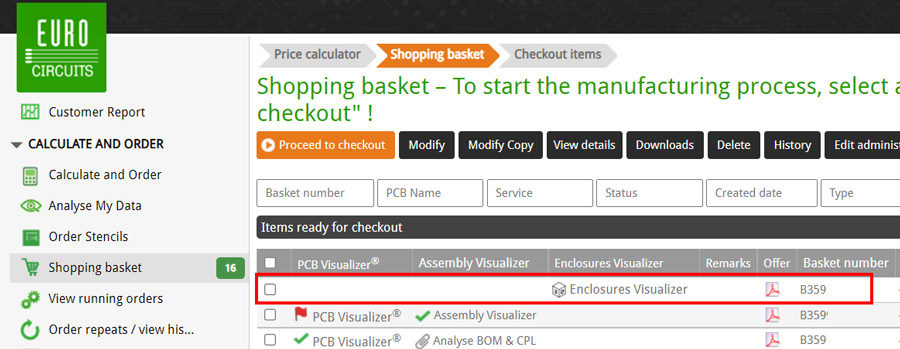
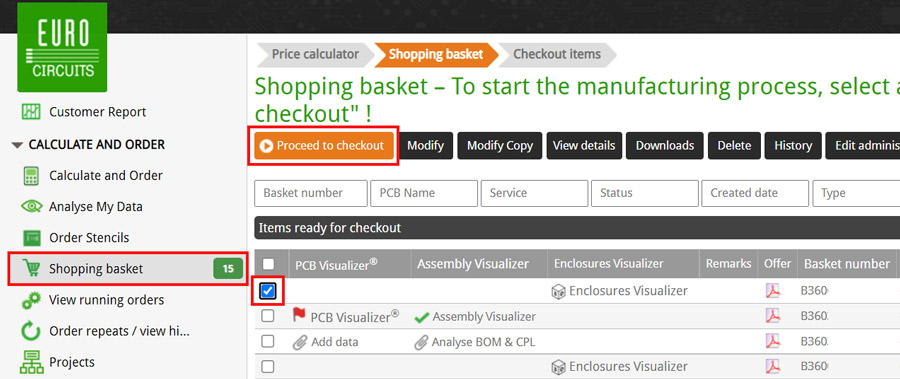
From your Shopping basket check the box at the left of the item and click on the Proceed to checkout button above.
Next check the details and click on the Submit button in the top right of the window to place your order.
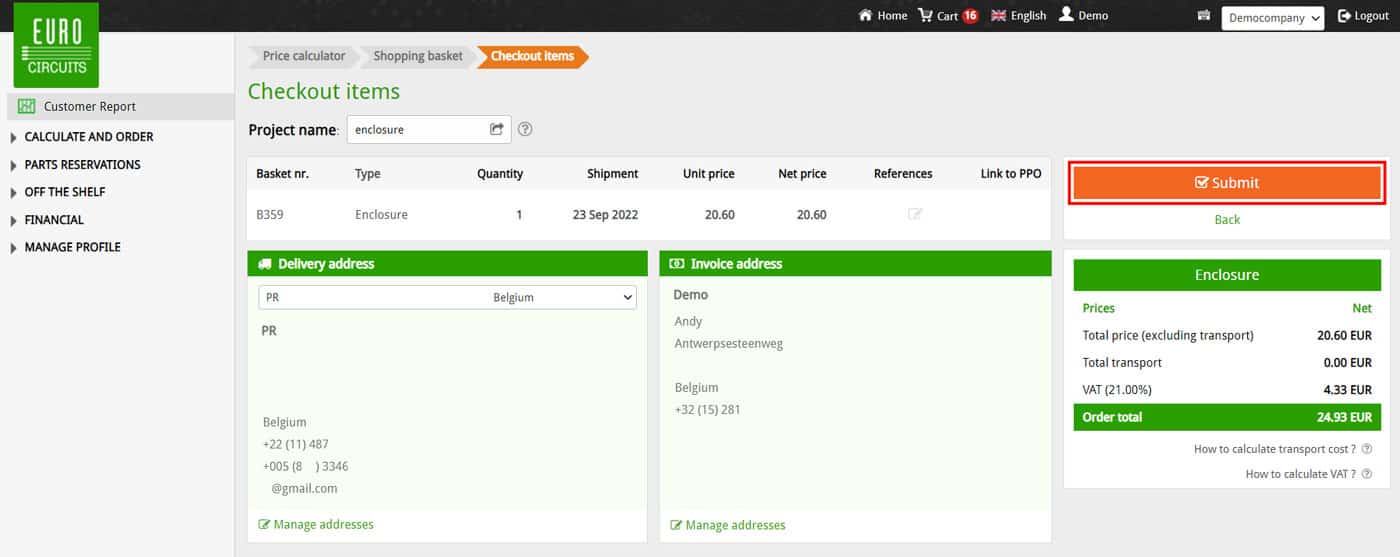
Your order is now submitted.
Coming soon…